Install the extension
The MConfirm extension works in Google Chrome and other Chromium browsers such as Edge and Brave.
Install
- Download mconfirm-extension.zip and unzip it into a folder you'll keep.
- Open
chrome://extensionsand turn on Developer mode (top right). - Click Load unpacked and pick the unzipped folder.
- Pin MConfirm from the puzzle-piece menu so its icon is always visible.
MConfirm will be listed on the Chrome Web Store soon. Then installing is one click and updates are automatic.
Connect your account
- Click the MConfirm icon and choose Connect MConfirm.
- Sign in with the same Google account you use in Gmail. The page confirms when the extension is connected.
- Reload any open Gmail tabs.
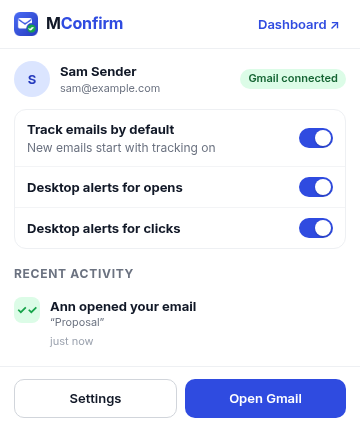
What the popup shows
- The account the extension is connected to and its Gmail connection status.
- Quick switches: Track new emails by default and Desktop notifications.
- Your latest opens and clicks, and a link to the dashboard.
Troubleshooting
- No MConfirm switch in compose? Reload Gmail. If it still isn't there, check the extension is enabled in
chrome://extensions. - “Reconnect Gmail” means Google access was removed. Open Account and connect again — your history is kept.
- No desktop notifications? Allow notifications for Chrome in your operating system settings.